

how to create music mods for arma 3
Introduction
Hello fellow modders! In this short guide I'll tell you how to add any music tracks to Arma 3. And especially to Zeus music module.
UPDATE: Now you can just download this mod https://steamcommunity.com/sharedfiles/filedetails/?id=1749133966 and use it as a base for your own custom music packs.
Here is example of how it looks BEFORE we use arma tools:
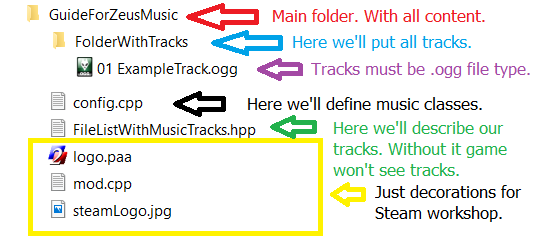
It is temporary folder for your mod and its name has to be unique.
Folder with tracksPut your music here. Might be any name for this folder. And there can be more than one of such folders, if you ever wish it. (All music must be in .ogg extension)
config.cppHere we'll define classes and attach .hpp file to our mod. It is a small file but you need to pay close attention to it. (Don't forget it's .cpp extension)
File List with music tracks.hppWe'll add name of every single music track here. You can name this file as you wish. Its extension is .hpp.
About other three files I'll tell you later, when we'll prepare our mod for publishing.
Config.cpp
And here is our code, just copy-paste it to notepad:
class CfgPatches { class GuideForZeusMusic { name = "GuideForZeusMusic"; author = "Your Nickname"; requiredVersion = 1.00; requiredAddons[] = {}; units[] = {}; weapons[] = {}; worlds[] = {}; }; }; class CfgMusic { #include "FileListWithMusicTracks.hpp" }; class CfgMusicClasses { class MyMusicClassForGuide { displayName = "This is visible in menu"; }; };
It'll look this way:
click image to look closer

It's worth to mention that name of music class must be without spaces.
(as well as name of any other class).
Don't forget to save this file in .cpp extension. As alternative you can just change it manually from .txt to .cpp extension.
.hpp file
And code again. Copy-paste it and save new file with .hpp extension. You'll need to paste this code for every single track you wish to add.
class aTrackForGuide { name = "This is visible name of track"; sound[] = {"GuideForZeusMusic\FolderWithTracks\01 ExampleTrack.ogg",db+0,1}; duration=133; musicClass = "MyMusicClassForGuide"; };
click image to look closer
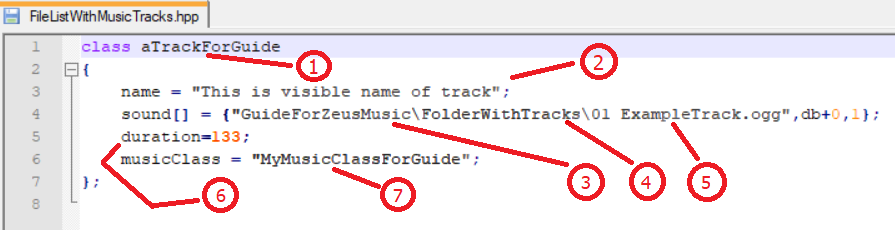
Here is meaning of each point you must know:
- 1) Name of music track for game - you won't see it. Must be unique for each track and without spaces.
- 2) Visible name of a track. You'll see it in game.
- 3) Exact name of main folder .
- 4) Exact name of folder with music .
- 5) Exact name of music track . It's important. Since here you'll put name of any track you wish to add.
- 6) Duration of music track in seconds. It's always important to know how long will be each particular track. Any Zeus will say thanks to you if this info will be real :)
- 7) Exact name of cfg music class (from that config.cpp file) and
display name of your music class. This name must be without spaces too. Look at that purple arrow on image before this one ^^^^ (in config.cpp) to understand from where comes this exact name ('MyMusicClassForGuide' in our case).
This .hpp consist only of one music track and that's why it's small. These .hpp for other music packs could be much bigger. But their logic will always be the same.
Here is example from my another mod:

mod.cpp and logos
It's just decorations for Steam workshop.
Copy-paste this too. Then save file as mod.cpp.
name = "PackForGuide Music"; picture = "logo.paa"; description = "PackForGuide Music"; logo = "logo.paa"; logoOver = "logo.paa"; tooltip = "PackForGuide Music"; tooltipOwned = "PackForGuide Music Owned"; overview = "PackForGuide Music"; author = "Your nickname"; overviewPicture = "logo.paa"; overviewText = "PackForGuide Music"; overviewFootnote = "";
Mod.cpp is necessary for your mod to look better in the game. Just place here name of your mod (instead of PackForGuide_Music) and your name as author.
As you can see we'll need a 'logo.paa' file. So here we go:
- At first make your logo.png file with resolution 256x256. If you wish it to be transparent just save it with alpha channel. Then open it with texView 2 from your arma tools. It should be like this:

And save it as file with .paa extension.
- Second thing is a steamLogo.jpg. It's a picture that describes your mod just a little bit better, besides it'll help others to recognize your mod on steam workshop. It looks like this:

ArmA Tools
And now it's time to build our mod. Open arma tools and select 'addon builder'.
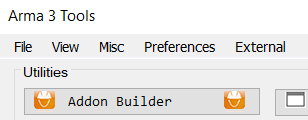

There is enough guides on how to sign your mods so I won't describe it here.
We'll pack our mod to new 'output' folder. After packing is done you'll need to bring some order to your new folder manually. Final result must be something like this:

Keep in mind that folder must be named exactly 'Addons' (NOT 'Addon').
Publishing
Now go to arma tools again and click 'publisher'.


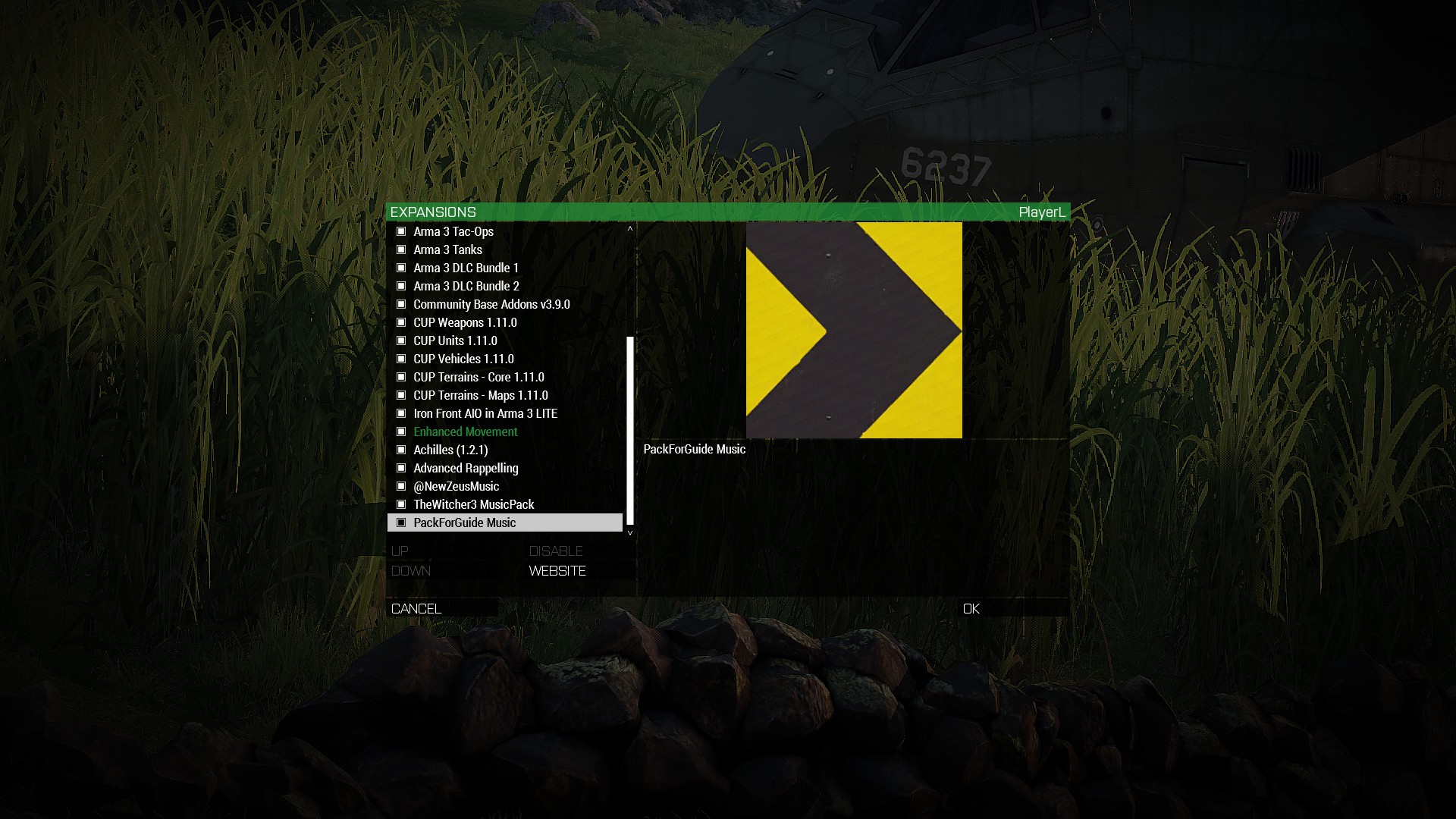
After you've finally published your mod, open it on steam and subscribe it, load game with your mod installed and try it. Here is how it looks in game:

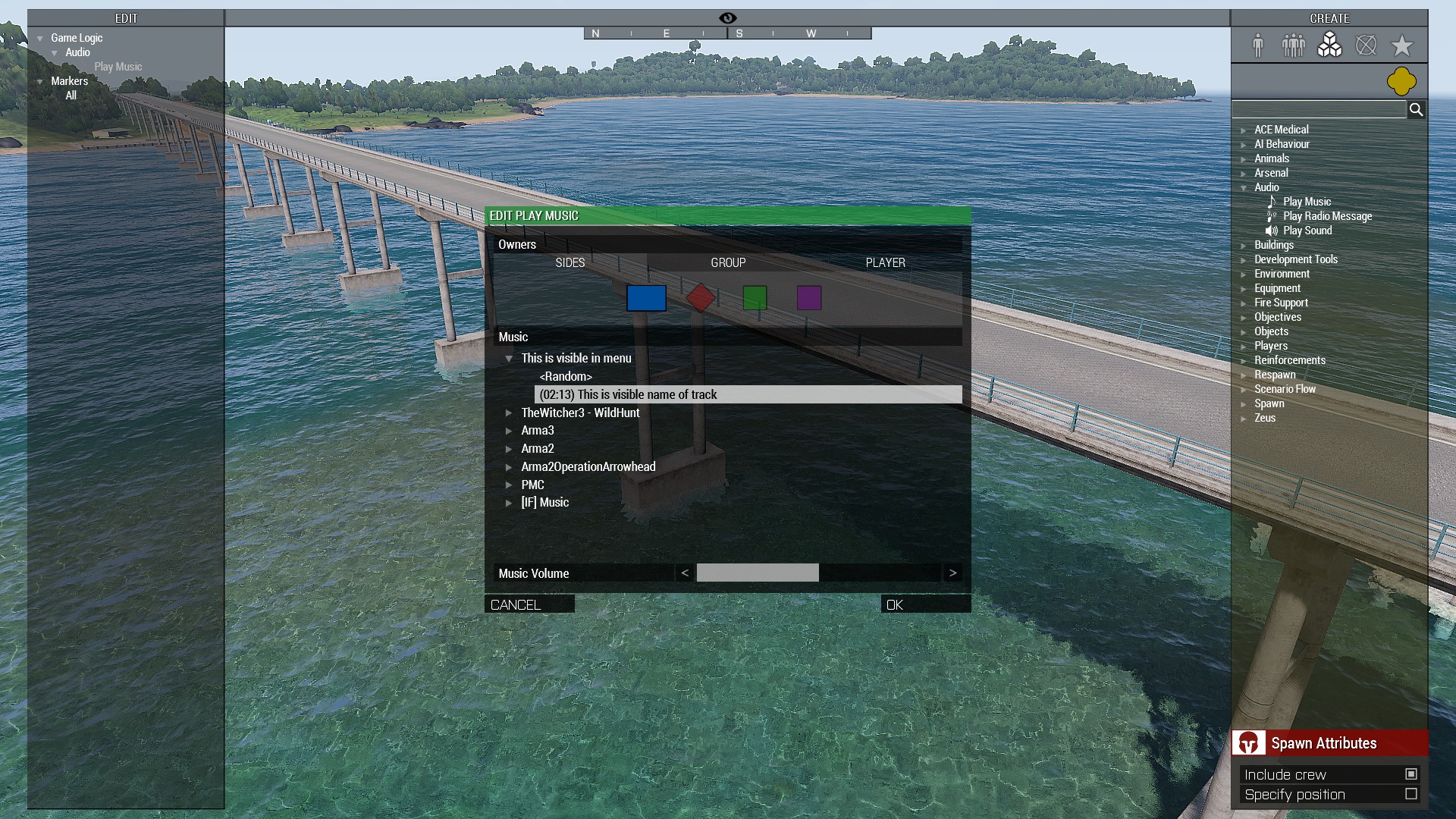
That's all! I really hope you can add any music you like now. I tried to keep this guide as simple as possible, but if you still have any questions about it, don't hesitate to ask me. Good luck!
P.S. Known issues:
Description: tracks are there but aren't playing any music.
Try uncheck 'Binarize' in your Addon Builder first. If it doesn't work, then read further.
...
.hpp file
class
MyNewTrack 1){ name = "This is visible name of a track"; sound[] = {"
YourFolder\
YourTracks\
01 ExampleTrack.
ogg",db+0,1}; duration=133;
2) 3) 4) 5)musicClass = "MyNewMusicClass"; };
Possible causes:
1) name (class) of a track must be unique and without spaces
2) wrong name of source folder / possible mismatch in real name and this name
3) wrong name of folder with tracks / same
4) wrong name of music track / same
5) don't forget to place .ogg file type at the end
...and of course - some .ogg files are really not playing in Arma 3 at all. I've experienced this issue too, but it's extremely rare. I can only suggest to reconvert those files to .ogg again with your favorite converter.
It's possible there is more on this issue - so if you still have it let me know.And just in case - don't forget to place your .PBO files in 'Addons' folder after archiving them with Addon Builder.
Also I tested that info about .mp3 and .wav music wasn't playing and it is 100% true - none of my .mp3 and .wav tracks are playing. They all must be .ogg.
...
Description: there is no track in zeus menu but track does exist and you can call it via triggers, etc.
.hpp
class JustTrack { name = "Any Track"; sound[] = {"GuideForZeusMusic\FolderWithTracks\01 ExampleTrack.ogg",db+0,1}; duration=133; musicClass = "
NO SUCH CLASS"; };
problem is non-existing class
.cpp
class CfgMusic { #include "muslist.hpp" }; class CfgMusicClasses { class
ClassOne(This one) { displayName = "First class"; }; class
ClassTwo(And this one) { displayName = "Second class"; }; };
classes are here. They must be without spaces. 'displayName' - is not a class.
CTD on game start.cpp
class CfgMusic { #include "muslist.hpp"
#include "nonexisting.hpp"}; class CfgMusicClasses { class MyDefaultClass { displayName = "Default"; }; };
Wrong name of .hpp file or reference to non-existing .hpp.
And as result you're getting CTD on start up and a tiny info box with the message that tells you: this 'non-existing file' does not exist!
Stay vigilant! And Good luck!
how to create music mods for arma 3
Source: https://steamcommunity.com/sharedfiles/filedetails/?id=1603895838
Posted by: garnergrele1962.blogspot.com
0 Response to "how to create music mods for arma 3"
Post a Comment